

When an industrial touch screen is not responding on the plant floor, every minute of downtime matters. The good news: most cases come down to a short list of causes, and you can narrow them down fast with the right sequence of checks. This guide walks you through separating software problems from hardware failures, fixing resistive and capacitive panels correctly, and knowing when a replacement display module is the cheaper path.
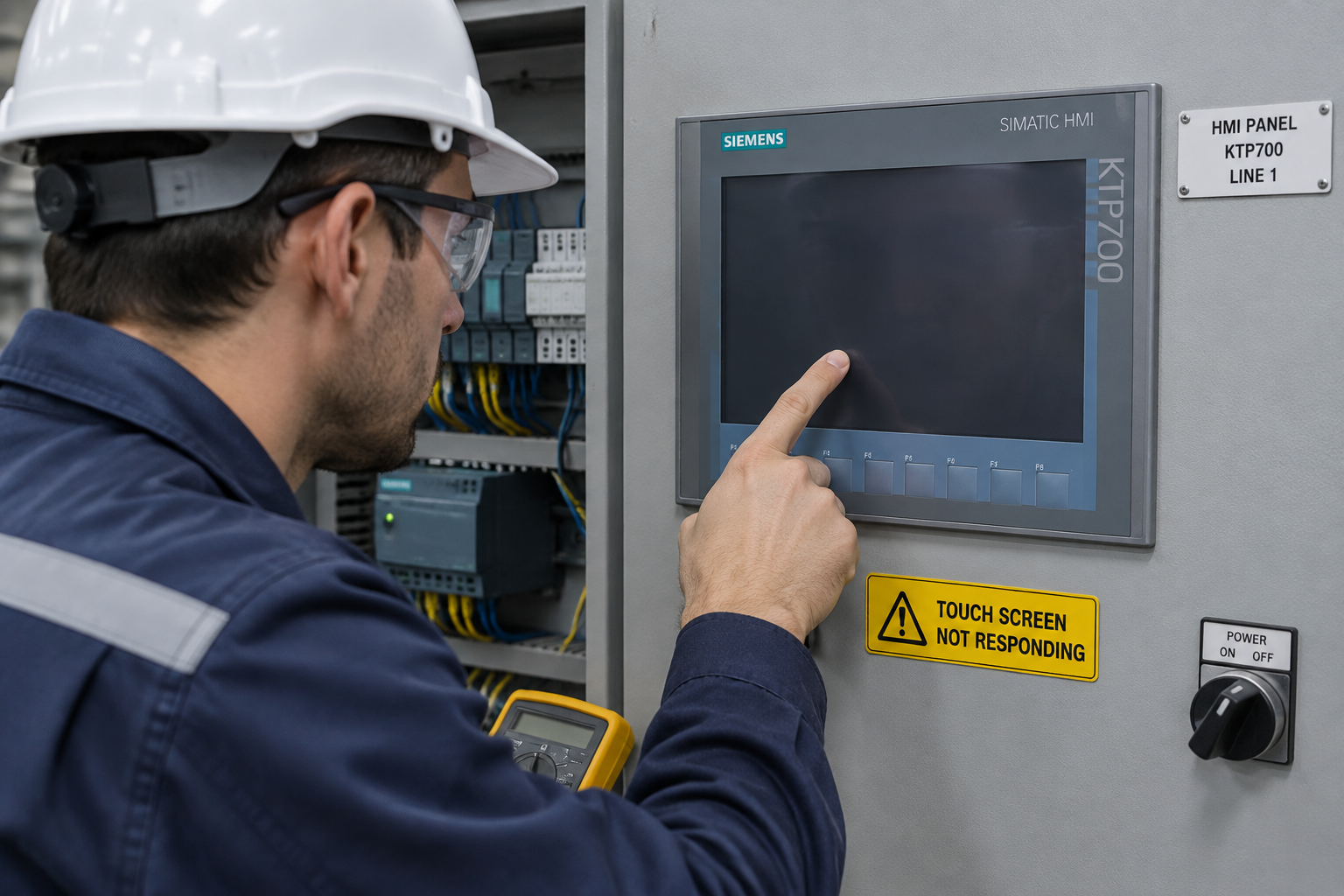
Key Takeaways
| Symptom | Likely cause | First move |
|---|---|---|
| No response at all, screen is black | Power supply or backlight | Check 24 V DC input and fuses |
| Display works, touch does nothing | Digitizer fault or touch disabled in settings | Check touch-enable setting, then recalibrate |
| Touch works in wrong places | Calibration drift | Run touch calibration |
| Dead zones or erratic jumps | Damaged glass or worn resistive layer | Inspect for cracks and deep scratches |
| Stops working after cleaning | Moisture ingress or wrong cleaner | Dry the bezel seam, use IPA only |
Why Is My Touch Screen Not Responding?
Industrial HMIs fail in predictable ways. In our repair workshop, the distribution looks roughly like this:
- Settings or software — touch input disabled in the HMI project, a frozen runtime, or a driver fault after a firmware update
- Power problems — sagging 24 V DC supply, loose terminals, or a blown input fuse
- Calibration drift — the panel responds, but touches register in the wrong spots
- Digitizer or glass damage — impacts, deep scratches, or a worn resistive layer after years of glove operation
- Moisture and contamination — cleaning fluid or oil wicking into the bezel seam
If you only have three minutes, start with our 3-minute HMI troubleshooting quick guide and come back here for the deep dive.
How Do You Tell a Software Problem From a Hardware Problem?
Before opening the panel, run these checks in order:
- Watch the startup screen. If the HMI boots normally and shows the runtime, power and the display are fine — the fault is probably in the touch layer or the project.
- Look for a USB or external mouse option. Many industrial panels accept a USB mouse. If the cursor moves but touch does nothing, the digitizer path is suspect.
- Check the touch-enable setting. Some projects ship with touch input disabled on purpose. On Siemens panels this lives in the control panel; on Allen-Bradley PanelView units, check the startup configuration.
- Ping the panel. If the HMI communicates over Ethernet and answers ping, the OS is alive — a frozen runtime is likely, and a restart may restore touch.
If the screen stays black or reboots in a loop, stop troubleshooting software and check the power supply, fuses, and backlight inverter first.
How Do You Fix an Unresponsive Resistive Touch Screen?
Resistive panels — the workhorse of factory floors because they work with gloves — are actually two flexible layers. Pressure closes a contact. They wear out, and they drift.
- Power-cycle the panel and watch for the touch cursor during boot.
- Run calibration from the HMI’s control panel (usually a crosshair sequence at 4–25 points).
- Test every zone. Draw lines corner to corner in a diagnostic screen. Broken or jittery lines mean layer damage.
- Inspect the surface. Deep scratches or cracks in the polyester top layer mean the digitizer needs replacement — calibration cannot fix physical damage.
How Do You Fix an Unresponsive Capacitive Touch Screen?
Capacitive panels detect fingers through a glass grid, like a phone. They fail differently:
- Clean and dry the glass. Oil film and water droplets mimic touches or block them entirely.
- Remove metallic surroundings. A metal guard installed too close to the bezel can create phantom touches or dead zones.
- Restart the runtime. Capacitive controllers occasionally lose their baseline after voltage sags.
- If zones stay dead, the touch controller board or the glass itself is damaged — that is a parts job, not a settings job.
How Should You Clean an Industrial Touch Screen?
Wrong cleaning kills more panels than operators expect:
- Use isopropyl alcohol (70%) on a lint-free cloth — never solvents, glass cleaner with ammonia, or abrasive pads
- Power down or lock the screen before wiping, so stray touches do not trigger actions
- Never spray liquid onto the panel — wet the cloth instead, and keep fluid out of the bezel seam
- Let the surface dry fully before powering back up
When Should You Recalibrate — and When Will It Not Help?
Recalibrate when touches register in the wrong location but the panel responds everywhere. Recalibration will not help when the panel is dead in specific zones, when lines drawn on a diagnostic screen break up, or after visible glass damage. Those symptoms point to digitizer wear, and no amount of software adjustment restores a physically broken layer.
Which Parts Usually Need Replacement?
Once a hardware fault is confirmed, these are the components that most often solve a touch screen not responding fault:
| Part | Symptom it fixes |
|---|---|
| Touch digitizer / glass | Dead zones, erratic response, cracked surface |
| Display module (LCD + backlight) | Dark or dim screen with working touch |
| Power supply board | No power, random reboots |
| Touch controller board | Total touch loss with good glass |
Replacement modules are often available individually — for example, a 2711P-RDT7C display module for PanelView Plus 6 700 units, or a complete Siemens KTP700 touch panel as a direct swap. Our HMI parts catalog covers Siemens, Allen-Bradley, Schneider, and other brands.
Not sure whether your HMI needs a digitizer, a display module, or a whole new panel? Send us the model number and a photo of the fault. Our engineers will tell you the cheapest working option: [email protected] or WhatsApp +86 15107352558.
How Can You Prevent Touch Screen Failures?
- Enforce the cleaning rules above — most liquid damage is self-inflicted
- Recalibrate on a schedule, not after drift becomes a complaint
- Keep the 24 V DC supply within spec; undervoltage causes ghost faults that look like touch failure
- Stock one spare display module or digitizer for each critical panel — the replacement takes minutes, downtime takes orders
- On panels older than 8–10 years with repeated faults, plan a migration instead of repeated repairs — see our notes on upgrading an aging HMI
Frequently Asked Questions
Why is my touchscreen not responding at all?
Check power first, then whether the panel boots. If it boots but ignores touch, check the touch-enable setting, restart the runtime, and try calibration. Dead zones or wrong-location touches point to digitizer damage.
Can a touch screen be disabled in settings?
Yes. Many HMI projects ship with touch input disabled in the device’s control panel or startup configuration. This is common after a firmware update or a project download.
Why did my touch screen stop working after cleaning?
Likely moisture ingress at the bezel seam, or a cleaner that left a conductive film. Power off, dry the seam, clean with isopropyl alcohol only, and let it dry fully before restarting.
Is it worth repairing an old industrial touch screen?
If the model is still supported and the fault is a single component (digitizer, display module, power board), repair is usually the cheapest fix. For obsolete panels with repeated faults, replacement or upgrade wins on total cost.
Can I replace only the touch glass?
On many industrial panels, yes — the digitizer is a separate part from the LCD. The exact part number depends on the panel model, so confirm before ordering.
Get Your HMI Working Again
A touch screen not responding is usually a thirty-minute fix if you have the right part on hand. We stock 100,000+ automation parts from 20+ brands, every unit tested before dispatch, with 48-hour global shipping and no minimum order. Send your panel model number: [email protected] or WhatsApp +86 15107352558.